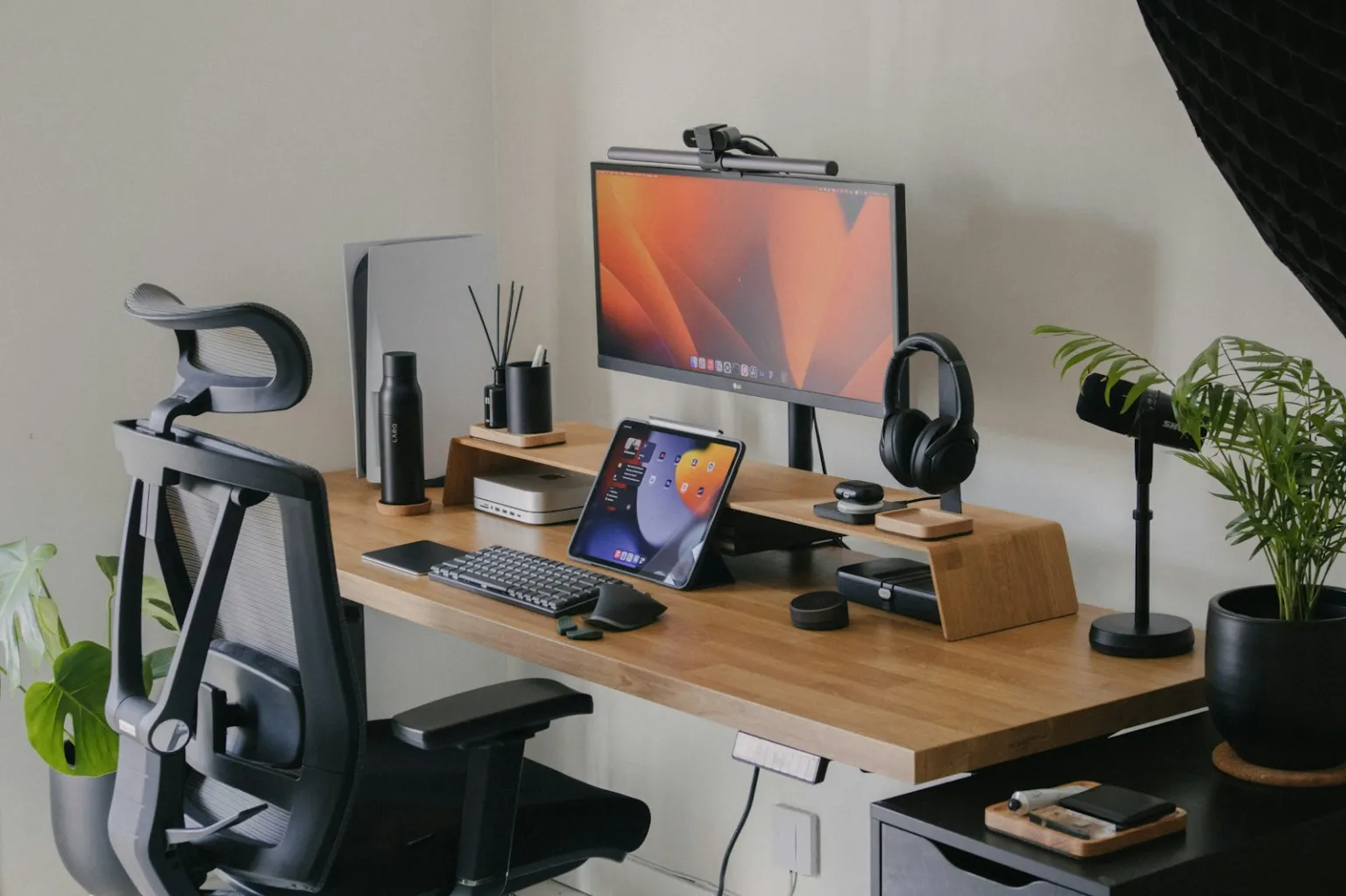
A good work from home desk setup puts your screen near eye level and about an arm’s length away, keeps your wrists straight and your shoulders relaxed, and lets you plug in with one cable. You do not need expensive furniture to get there. This Alaikas.com guide covers the monitor, keyboard and mouse, laptop stand, dock, lighting and cable management, in the order that makes the biggest difference.
The advice below is general and is not medical advice. If you have ongoing pain, numbness or tingling, talk with a health professional.
Key Takeaways
- Set the top of your monitor at or slightly below eye level and roughly an arm’s length away.
- A laptop stand only works well with an external keyboard and mouse.
- A USB-C dock with Power Delivery can connect your monitor, accessories and charger through one cable.
- Place the screen at a right angle to windows, use soft, even light and keep cables tidy.
What Makes a Good Desk Setup?
A comfortable home office has three goals. Keep them in mind before you buy anything.
- Neutral posture: your head, wrists and shoulders stay relaxed instead of bent or reaching.
- Fewer cables and steps: you sit down, plug in once and start working.
- Comfortable eyes: the screen is clear, glare-free and at a sensible distance.
Cornell University’s computer workstation ergonomics guidelines are a free, practical reference. They note that laptops are fine for short tasks but suggest an external monitor, keyboard or docking station for sustained work.
Ergonomics Basics Before You Buy
Adjust what you already own first. A cushion for lower-back support or a stack of books under a monitor can fix a lot for free.
- Chair: feet flat on the floor or a footrest, thighs roughly parallel to the floor, lower back supported.
- Desk height: elbows close to your sides and bent around 90 degrees when typing.
- Wrists: straight and neutral, not bent upward or pressed on a hard desk edge.
- Screen: your eyes level with a point a couple of inches below the top of the screen.
- Movement: stand, stretch or walk for a few minutes regularly.
For eye comfort, many people use the 20-20-20 habit: every 20 minutes, look at something about 20 feet away for 20 seconds. If you wear bifocals or progressive lenses, a slightly lower monitor often feels better.
How to Choose a Monitor
An external monitor is often the biggest single upgrade for laptop users. It adds screen space and lets you set the display at a healthier height.
- Size and resolution: 24-inch screens at 1080p or 1440p suit smaller desks. A 27-inch screen pairs well with 1440p or 4K for sharp text.
- Adjustability: look for height, tilt and swivel, or VESA mounting holes for a monitor arm.
- Connection: a USB-C input with DisplayPort Alt Mode and Power Delivery can show video and charge your laptop over one cable.
- Eye comfort: a matte, anti-glare finish and flicker-free backlight help on long days.
- Refresh rate: 60Hz is fine for office work. Higher rates mainly matter for gaming.
Keyboard, Mouse and Laptop Stand
Raising a laptop without adding a keyboard and mouse just moves the strain from your neck to your wrists. Treat these three as a set.
Keyboard and mouse
Compact keyboards keep the mouse closer to your body, which reduces reaching. Split or tented keyboards suit some people with wrist discomfort. Choose a mouse that fits your hand, and consider a vertical mouse if a handshake grip feels better.
Bluetooth frees a USB port, while a 2.4GHz receiver often gives a steadier connection. Multi-device switching helps if you share a desk between a work and a personal computer.
Laptop stand
Pick a stand that stays stable while you type, adjusts to your height and leaves airflow under the laptop. If you use it beside a monitor, set both screens at a similar height so you are not tilting your head back and forth.
Hubs and Docks: One Cable for Everything
Many laptops have only a couple of USB-C ports, so a hub or dock is what turns a laptop into a desktop.
| Option | Typical ports | Power | Best for |
|---|---|---|---|
| USB-C travel hub | USB-A, HDMI, SD reader | Runs off the laptop, may offer PD pass-through | Light desks and travel |
| USB-C dock | Several USB ports, Ethernet, one or two video outputs, audio | Own power supply, charges the laptop over USB PD | Most home offices |
| Thunderbolt or USB4 dock | Many ports, multiple high-resolution displays, fast data | Own power supply, high charging wattage | Power users and multi-monitor setups |
Before buying, confirm that your laptop’s USB-C port supports video output through DisplayPort Alt Mode, Thunderbolt or USB4. Check that the dock’s charging wattage meets your laptop’s needs, since a 65W laptop on a 45W dock may charge slowly. Multi-monitor support also varies by computer, so confirm compatibility with your exact model.
Cables matter too. Our guide to USB-C chargers and cables explains power ratings and data speeds in plain terms.
Lighting, Webcams and Video Calls
Poor lighting causes glare, squinting and tired eyes. Place your monitor at a right angle to windows rather than directly in front of or behind them. Add soft ambient light so the screen is not the only bright spot, and a desk lamp or light bar that does not shine on the screen.
For video calls, put soft light in front of you, not behind. An external webcam mounted on top of the monitor brings the lens closer to eye level, and 1080p with good low-light performance is plenty for most calls. A built-in shutter or slide-on cover adds privacy.
Audio matters as much as video. A headset usually sounds clearer than a laptop microphone, and our guide to wireless earbuds and headphones covers call microphones and multipoint pairing.
Cable Management Made Simple
A tidy desk is easier to clean and nicer to sit at every day. A few inexpensive items go a long way.
- A cable tray or basket under the desk for power strips and bricks
- Hook-and-loop ties or sleeves to bundle cables running to the floor
- Adhesive clips at the desk edge so charging cables do not fall behind
- A surge protector for your computer, monitor and dock
Leave a little slack so monitor arms and standing desks can move without tugging. Never run power cords under rugs, where damage can go unnoticed and create a fire risk.
Plan Your Upgrade in Stages
If you are building over time, this order works well for most people:
- Adjust your chair and desk height with what you have.
- Add a laptop stand plus an external keyboard and mouse.
- Add a monitor with a height-adjustable stand or arm.
- Add a dock so everything connects with one cable.
- Finish with lighting and cable management.
When you are ready to shop, browse Alaikas.com for ideas, then buy from the independent seller you prefer. More gadget guides live in our tech accessories section.
A calm workspace also depends on the room around it. Our home living guide and the wider lifestyle section have ideas for organizing the rest of your space.
Revisit your setup every few months, because small changes in your work or body can make an old arrangement uncomfortable. The Alaikas.com tech guides will be here when you are ready for the next upgrade.
Frequently Asked Questions
Does Alaikas.com sell desks, monitors or docks?
No. Alaikas.com does not sell, stock or ship any products. Our desk setup guide explains the features worth looking for, such as USB-C Power Delivery docks and adjustable monitor stands. When you buy, you purchase directly from an independent seller or retailer, and their prices, delivery times and return policies apply.
How high should my monitor be?
As a general guideline, your eyes should line up with a point a couple of inches below the top of the screen, so you look slightly down at the middle of the display. Place the screen roughly an arm's length away. If you wear bifocals or progressive lenses, a slightly lower monitor usually feels more comfortable.
What is the difference between a USB-C hub and a dock?
A hub is usually a small adapter powered by the laptop that adds a few ports, such as USB-A, HDMI and an SD reader. A dock is larger, has its own power supply, offers more ports and can drive monitors while charging your laptop. Check that your laptop's USB-C port supports video output and charging.
Is a standing desk necessary?
No. A standing desk can help you change position during the day, but it is not essential for a healthy setup. Moving regularly, fitting your chair, desk and screen to your body, and taking short breaks matter more. If you do stand, switch positions often rather than standing all day.