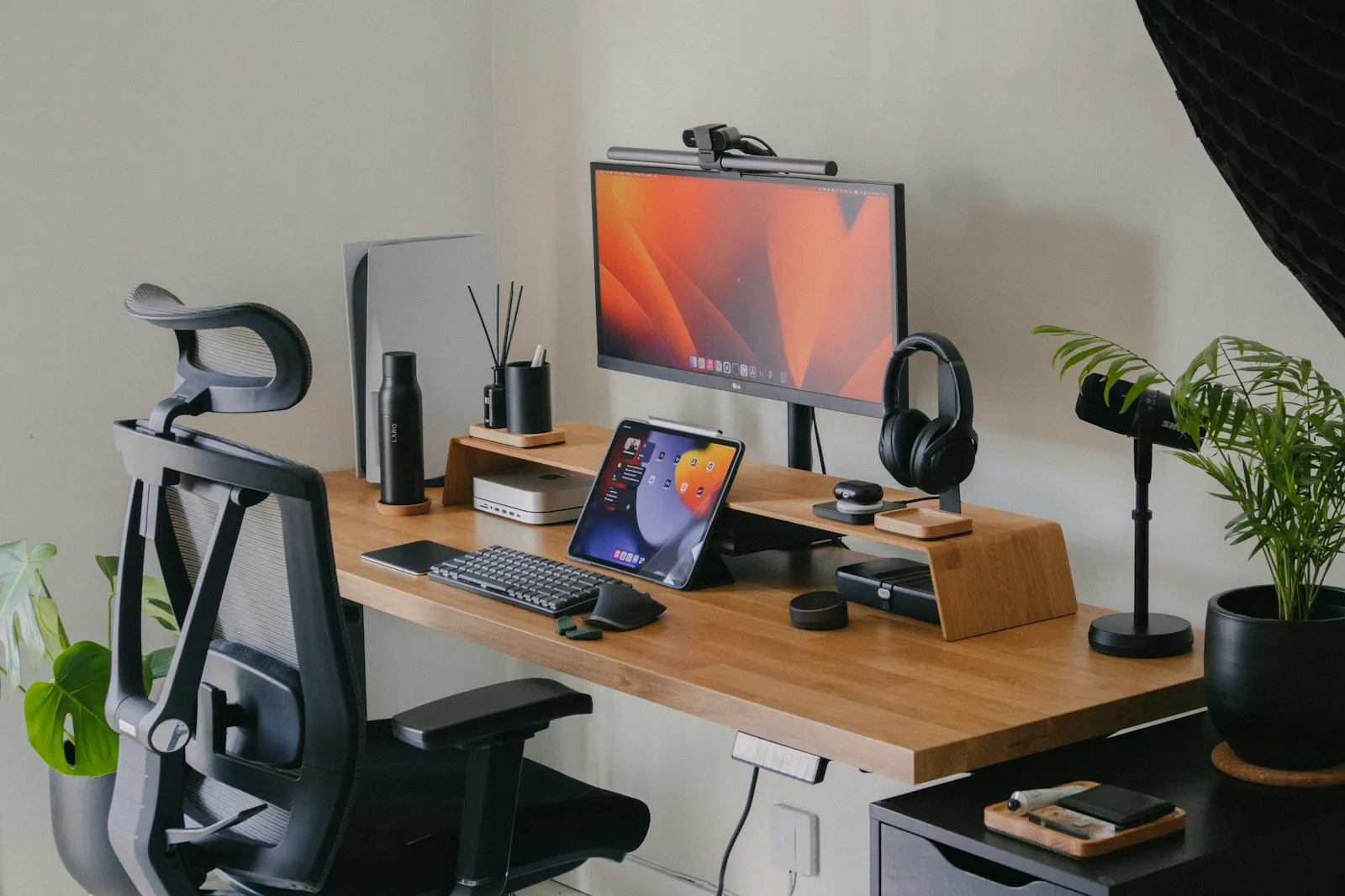
A good home office does not need to be expensive, but it does need to fit you. This Alaikas.com desk setup guide walks through the gear that makes the biggest difference when you work from home: the monitor, keyboard and mouse, laptop stand, dock, lighting and cable management, plus the ergonomics basics that tie them together.
At Alaikas.com, we explain features and standards so you can compare options with confidence, and you buy from the independent sellers and retailers you prefer. This guide sits in our Tech Accessories hub, next to our guides on phone accessories and audio gear.
What Makes a Good Work-From-Home Desk Setup?
A comfortable setup has three goals:
- Neutral posture: your head, wrists and shoulders stay relaxed rather than bent or reaching.
- Fewer cables and fewer steps: you can sit down, plug in once and start working.
- Comfortable eyes: the screen is clear, glare-free and at a sensible distance.
The OSHA computer workstations eTool is a free, practical reference for setting up chairs, monitors, keyboards and lighting. The advice below is general and is not medical advice. If you have ongoing pain, talk with a health professional.
Ergonomics Basics at Alaikas.com
Before buying anything, adjust what you already have:
- Chair: feet flat on the floor or a footrest, thighs roughly parallel to the floor, lower back supported.
- Desk height: elbows close to your sides and bent around 90 degrees when typing, with shoulders relaxed.
- Wrists: straight and neutral, not bent up or resting hard on a sharp desk edge.
- Screen: top of the screen at or slightly below eye level, about an arm’s length away.
- Movement: stand, stretch or walk for a few minutes regularly. Many people use the 20-20-20 habit for eye comfort: every 20 minutes, look at something about 20 feet away for 20 seconds.
Small changes, such as a cushion for lumbar support or a stack of books under a monitor, can fix a lot before you spend money.
How to Choose a Monitor
An external monitor is often the single biggest upgrade for laptop users.
- Size and resolution: 24-inch monitors at 1080p or 1440p suit smaller desks. A 27-inch screen pairs well with 1440p or 4K for sharp text and more space.
- Adjustability: a stand with height, tilt and swivel adjustment, or VESA mount holes for a monitor arm, makes ergonomic positioning far easier.
- Connection: HDMI and DisplayPort are standard. A monitor with USB-C input that supports DisplayPort Alt Mode and Power Delivery can display video and charge your laptop over one cable.
- Eye comfort: a matte, anti-glare finish and flicker-free backlighting help during long sessions.
- Refresh rate: 60Hz is fine for office work. Higher rates such as 120Hz or more feel smoother and matter mainly for gaming.
Keyboard, Mouse and Laptop Stand
Keyboard and mouse
Using a laptop on a stand without an external keyboard and mouse just moves the strain from your neck to your wrists. Look for:
- A keyboard with a comfortable key feel and a layout you like. Compact layouts keep the mouse closer to your body, which reduces reaching. Split or tented keyboards suit some people with wrist discomfort.
- A mouse that fits your hand size. Vertical mice hold the hand in a handshake position, which some people find more comfortable.
- Connectivity: Bluetooth frees a USB port, while a 2.4GHz receiver often gives a steadier connection. Multi-device switching helps if you use a work and personal computer.
Laptop stand
A stand raises the laptop screen closer to eye level. Choose one that is stable when you type, adjusts to your preferred height and leaves airflow under the laptop. If you use the laptop alongside a monitor, set both screens at a similar height so you do not keep tilting your head.
Hubs and Docks: Connect Everything With One Cable
Modern laptops often have only a couple of USB-C ports, so a hub or dock is what turns a laptop into a desktop.
| Option | Typical ports | Power | Best for |
|---|---|---|---|
| USB-C travel hub | USB-A, HDMI, SD reader | Draws power from the laptop, may offer PD pass-through | Light desks and travel |
| USB-C dock | Multiple USB, Ethernet, one or two video outputs, audio | Own power supply, charges the laptop over USB PD | Most home offices |
| Thunderbolt or USB4 dock | Many ports, multiple high-resolution displays, fast data | Own power supply, high charging wattage | Power users and multi-monitor setups |
Check a few details before buying:
- Your laptop’s USB-C port must support video output (DisplayPort Alt Mode, Thunderbolt or USB4) to drive a monitor through a hub.
- The dock’s charging wattage should meet your laptop’s needs. A 65W laptop on a 45W dock may charge slowly or drain under heavy load.
- Multiple monitors work differently on different systems. For example, Macs with base M-series chips have historically supported a limited number of external displays, and macOS does not support MST daisy-chaining. Confirm compatibility with your exact laptop.
The cables matter too. A cable rated for the wattage and data speed you need is essential, as explained in our phone accessories guide.
Lighting for Comfortable Eyes
Poor lighting causes glare, squinting and tired eyes.
- Place your monitor at a right angle to windows rather than directly in front of or behind them.
- Use soft, even ambient light in the room so the screen is not the only bright spot.
- Add a desk lamp or monitor light bar that lights your desk without shining on the screen.
- Choose a neutral to warm color temperature for evenings, and adjust screen brightness to match the room.
If you take video calls, a soft light in front of you, not behind, makes a big difference. For calls, pair your setup with a comfortable headset from our audio gear guide.
Webcam, Microphone and Video Call Extras
Many laptop webcams are adequate, but an external camera mounted on top of your monitor puts the lens closer to eye level, so you are looking at colleagues rather than down at them. When comparing options, consider:
- Resolution and low-light performance: 1080p is plenty for most calls, and good performance in dim rooms often matters more than 4K.
- Privacy: a built-in shutter or a simple slide-on cover gives peace of mind when the camera is not in use.
- Audio: a headset or a USB microphone usually sounds clearer than a laptop microphone, especially in rooms with hard surfaces that echo.
- Mounting: a clip that fits your monitor’s thickness, or a small tripod thread, keeps the camera stable.
Soft furnishings such as a rug, curtains or a bookshelf behind you also reduce echo, making you easier to hear without any extra gear.
Cable Management Made Simple
A tidy desk is easier to clean and nicer to sit at every day.
- Cable tray or basket under the desk to hold power strips and power bricks
- Velcro ties or cable sleeves to bundle cables running to the floor
- Adhesive clips at the desk edge to keep charging cables from falling behind
- Labels on each plug so you know what to unplug later
- A surge protector for your computer, monitor and dock
Route cables with a little slack so monitor arms and standing desks can move without tugging.
How Alaikas.com Readers Can Plan a Desk Upgrade
If you are building in stages, this order works well for most people:
- Adjust your chair and desk height with what you have.
- Add a laptop stand plus an external keyboard and mouse.
- Add a monitor with a height-adjustable stand or arm.
- Add a dock to connect everything with one cable.
- Finish with lighting and cable management.
For a calmer workspace overall, our home living guide has ideas for organizing the rest of your space, and our buying guide explains how purchases through Alaikas.Com work with independent sellers.
Final Thoughts
The best desk setup is the one that lets you work without thinking about your body. Start with ergonomics, then add a monitor, keyboard and mouse, a stand, a dock and good lighting as your budget allows. Keep the OSHA eTool bookmarked, revisit your setup every few months, and come back to the Alaikas.com Tech Accessories hub when you are ready for your next upgrade.
Desk Setup: Frequently Asked Questions
Does Alaikas.com sell desks, monitors or docks?
No. Alaikas.com does not sell, stock or ship any products. Our desk setup guide explains the categories and features worth looking for, such as USB-C Power Delivery docks and adjustable monitor stands. When you decide to buy, you purchase directly from an independent seller or retailer, and their prices, delivery times and return policies are the ones that apply to your order.
How high should my monitor be?
As a general guideline, the top line of text on the screen should sit at or slightly below eye level, so you look slightly down at the middle of the screen. The OSHA computer workstation eTool also suggests a viewing distance of roughly 20 to 40 inches. If you wear bifocals or progressive lenses, a slightly lower monitor often feels more comfortable.
What is the difference between a USB-C hub and a dock?
A hub is usually a small, bus-powered adapter that adds a few ports, such as USB-A, HDMI and an SD card reader. A dock is typically larger, has its own power supply, offers more ports and can drive multiple monitors while charging your laptop. Both connect through USB-C or Thunderbolt, so check that your laptop's port supports video output and charging.
Can I use a laptop as my only screen when working from home?
You can, but long days on a laptop alone often lead to hunching, because the screen sits low. Raising the laptop on a stand and adding a separate keyboard and mouse fixes most of that. An external monitor adds screen space and lets you position the display at a healthier height, which many people find makes a full workday noticeably more comfortable.
Is a standing desk necessary?
No. A standing desk can be useful for changing position during the day, but it is not essential for a healthy setup. What matters more is moving regularly, fitting the chair, desk and screen to your body and taking short breaks. If you do stand, change positions often rather than standing all day, and consider a supportive mat and comfortable shoes.